Högerklicksmenyer
Klipp i tidslinjen
Det här är den sammanhangsberoende menyn som visas när man högerklickar på ett klipp i tidslinjen. En annan meny visas om man klickar på ett tomt utrymme i tidslinjen.
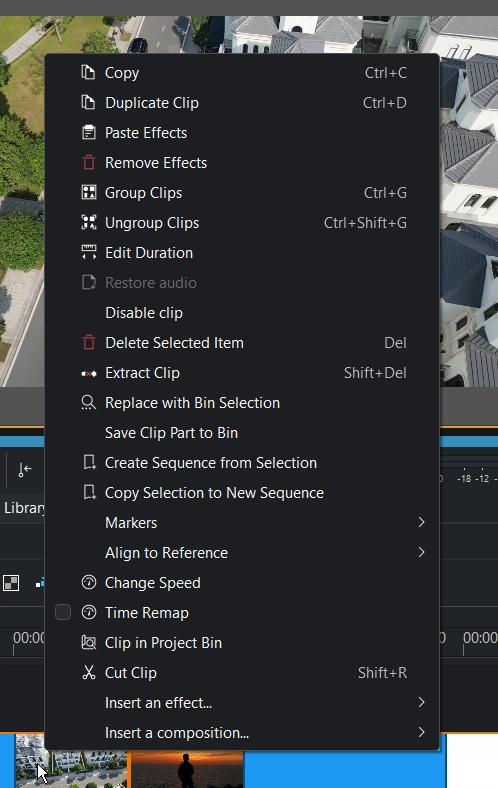
Kopiera kopierar klippet och markerade klipp till klippbordet.
Duplicera klipp skapar en kopia av ett enstaka markerat klipp, även inom en grupp på respektive spår (inklusive alla effekter och nyckelbilder) och placerar det på tidslinjen efter det markerade klippet.
Klistra in effekter klistrar endast in effekterna från det senast kopierade klippet till det markerade klippet. Se Klistra in effekter.
Ta bort effekter tar bort alla effekter från det markerade klippet.
Gruppera klipp: se Gruppering
Dela upp klipp: se Gruppering
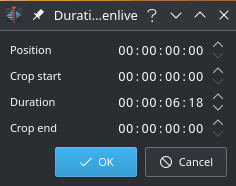
Redigera längd: öppnar dialogrutan Längd och ger möjlighet att justera klippets position i tidslinjen, vilken tidpunkt källklippet ska börja på tidslinjen, längden på klippet och vilken tidpunkt källklippet ska sluta på tidslinjen. Observera att Kdenlive automatiskt justerar samhörande värden.
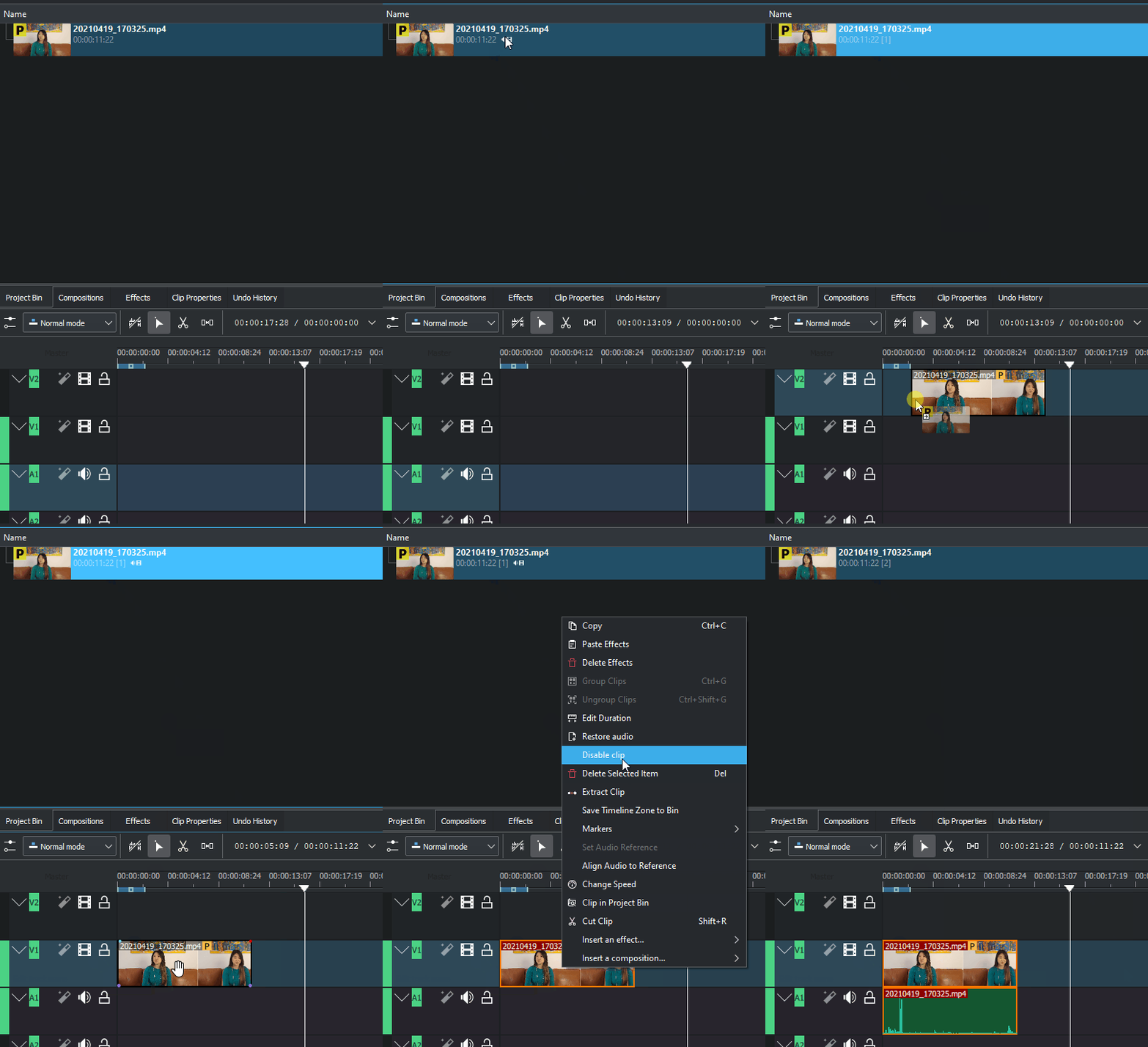
Återställ ljud lägger till alla ljudspår som ingår på det ursprungliga klippet i tidslinjen
Inaktivera klipp inaktiverar klippet så att det inte återges på projektskärmen eller i en slutlig videoåtergivning. För att inaktivera video- eller ljuddelen av ett A/V-klipp måste man dela upp A/V-klippet, inaktivera video- eller ljuddelen och gruppera A/V-klippet igen.
Ta bort markerat objekt tar bort objektet som har markerats. Lägg till i markeringen: Håll nere Skift och klicka på ytterligare ett objekt. hanterar AV-klipp som ett element, det spelar ingen roll på vilket spår de är. Funktionen är endast tillgänglig i menyn Tidslinje för att undvika nedskräpning.
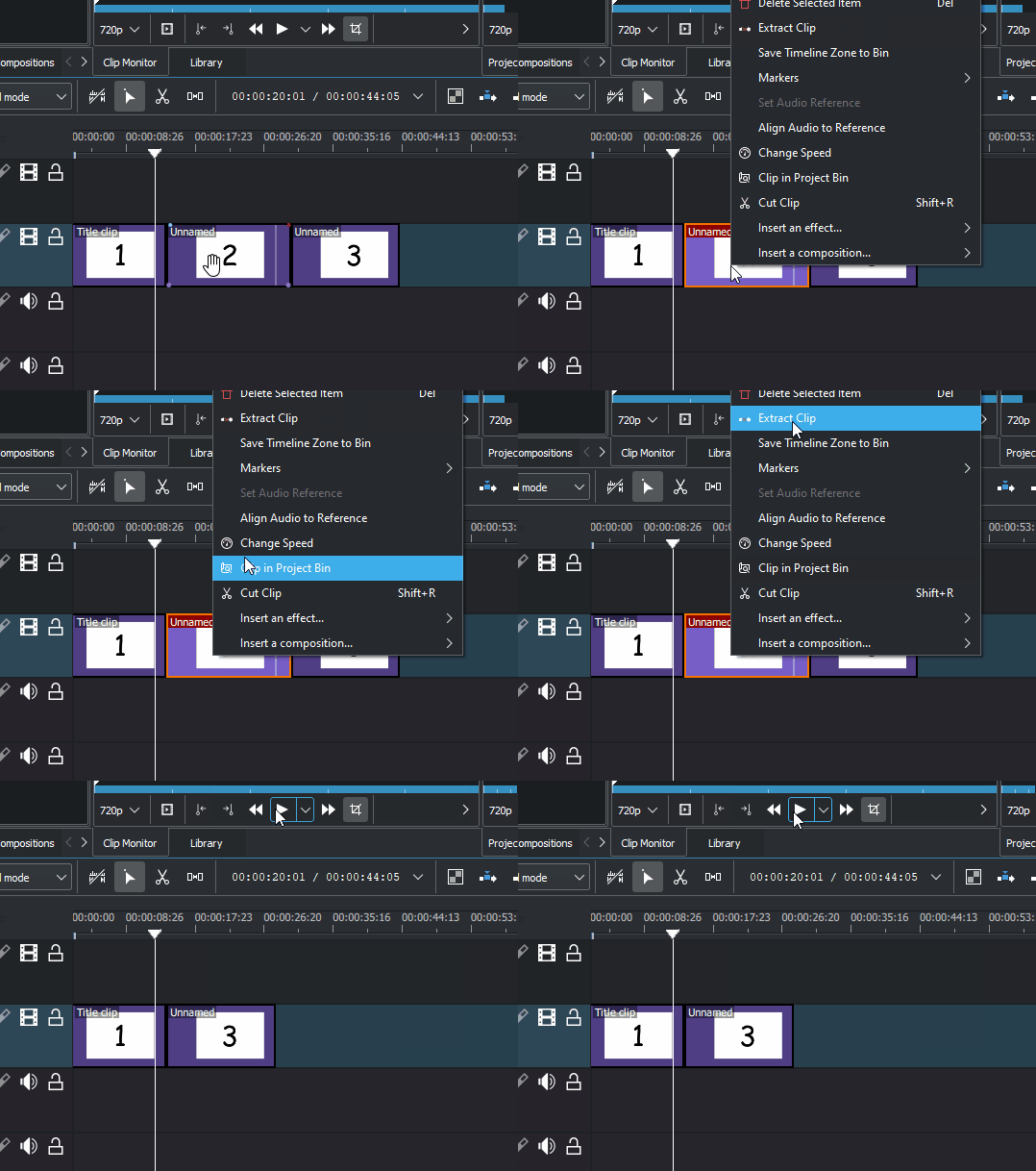
Extrahera klipp tar bort klippet från tidslinjen och utrymmet det upptog.
Ersätt med korgmarkering ersätter det markerade klippet med klippet som är markerat i projektkorgen. En dialogruta visas för att bekräfta ersättningen. Om inget klipp är markerat i projektkorgen, tillåter det att dialogrutan för Importera nytt klipp öppnas.
Spara klippdel i korg sparar ett specifikt skärt avsnitt från tidslinjen tillbaka till projektkorgen som ett organiserat delklipp.
Skapa sekvens från markering skapar en ny sekvens från markerade klipp i tidslinjen. Man måste markera minst två klipp. De markerade klippen ersätts av den nyskapade sekvensen. Mer information i Skapa en nästlad sekvens.
Kopiera markering till ny sekvens kopierar de markerade klippen från tidslinjen till en ny sekvens. Man måste markera minst två klipp.
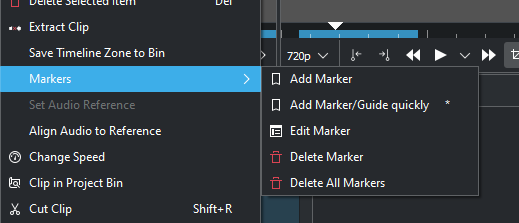
Undermenyn Markörer gör att man kan lägga till, redigera och ta bort markörer från klippen som visas på tidslinjen. Markörerna flyttas med klippen. Se Markörer.

Undermenyn Justera till referens gör det möjligt att ställa in antingen ljud eller SMPTE-liknande tidskod till en referens. Det är användbart om två eller fler kameror spelade in samma scen samtidigt.
Ställ in ljudreferens och Justera ljud till referens används för att justera klipp på olika spår i tidslinjen baserat på spårens ljud. Kdenlive kan använda de nästan identiska ljudspåren för att justera de två klippen.
Ställ in tidskodsreferens och Justera tidskod till referens används för att justera klipp på olika spår i tidslinjen baserat på SMPTE-liknande tidskod i spåren.
För att använda funktionerna:
Markera klippet som ska justeras till.
Högerklicka, välj Ställ in ljudreferens eller Ställ in tidskodsreferens.
Markera alla klipp som ska justeras.
Högerklicka och välj Justera ljud till referens eller Justera tidskod till referens.
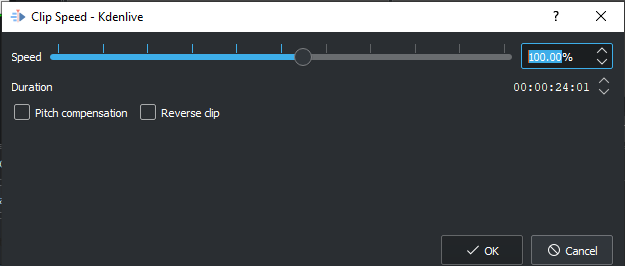
Ändra hastighet öppnar dialogrutan för att ändra hastighet som gör att uppspelningshastigheten för ett klipp kan ökas eller minskas, möjliggör uppspelning av klippet baklänges och aktiverar/inaktiverar tonhöjdskompensation för ljudet för ett hastighetsjusterat klipp.
Göra hastighetsändring av ett klipp med musen se: Ändra hastighet på klipp
Tidsombildning öppnar dialogrutan för tidsombildning som gör det möjligt att skapa en hastighetsramp för ett klipp. Se Tidsombildning.
Klipp i projektkorg indikerar det markerade klippet i projektkorgen.
Skär klipp Väljes det här skärs det markerade klippet på platsen i Tidslinje. Se även Redigering.
Infoga effekt visar en undermeny så att man snabbt kan lägga till effekterna Transformera eller Höjning/gamma/förstärkning
Infoga komposition visar en undermeny där man snabbt kan lägga till Komposition och transformera eller kompositionen Övergång.
Tomt utrymme i tidslinjen
En annan meny visas om man klickar på ett tomt utrymme i tidslinjen.
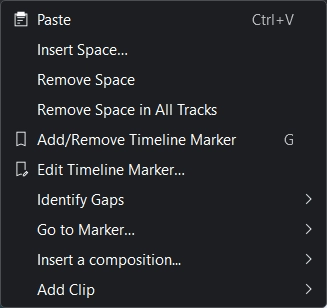
Klistra in klistrar in ett klipp från klippbordet i tidslinjen
Infoga mellanrum öppnar dialogrutan Infoga mellanrum och låter dig infoga ett tomt mellanrum på tidslinjen i ett enda spår.
Ta bort mellanrum tar bort allt mellanrum mellan klippen på spåret.
Ta bort mellanrum i alla spår tar bort mellanrum mellan klipp på alla spår.
Lägg till/Ta bort tidslinjemarkör lägger till en tidslinjemarkör i tidslinjen eller tar bort en befintlig vid uppspelningspositionen.
Redigera flagga gör det möjligt att redigera markörens beteckning.
Identifiera gap öppnar en undermeny för att antingen inkludera Alla spår eller Markerat spår för att skapa tidslinjemarkörer där det finns gap/utrymme i tidslinjen.
Gå till tidslinjemarkör visar en undermeny med en lista över markörer och flyttar tidslinjens positionsmarkör till flaggan.
Infoga komposition visar en undermeny där man snabbt kan lägga till Komposition och transformera eller kompositionen Övergång.
Lägg till klipp (fungerar bara för videospår) visar en undermeny som gör det möjligt att snabbt lägga till klipp i tidslinjen.