Colors and Markers
This section is used to configure the colors used for audio thumbnails, the monitor overlay and background color, and the grid for certain effects.
You can also add, edit, and delete the categories and colors used for Timeline Markers and Markers.
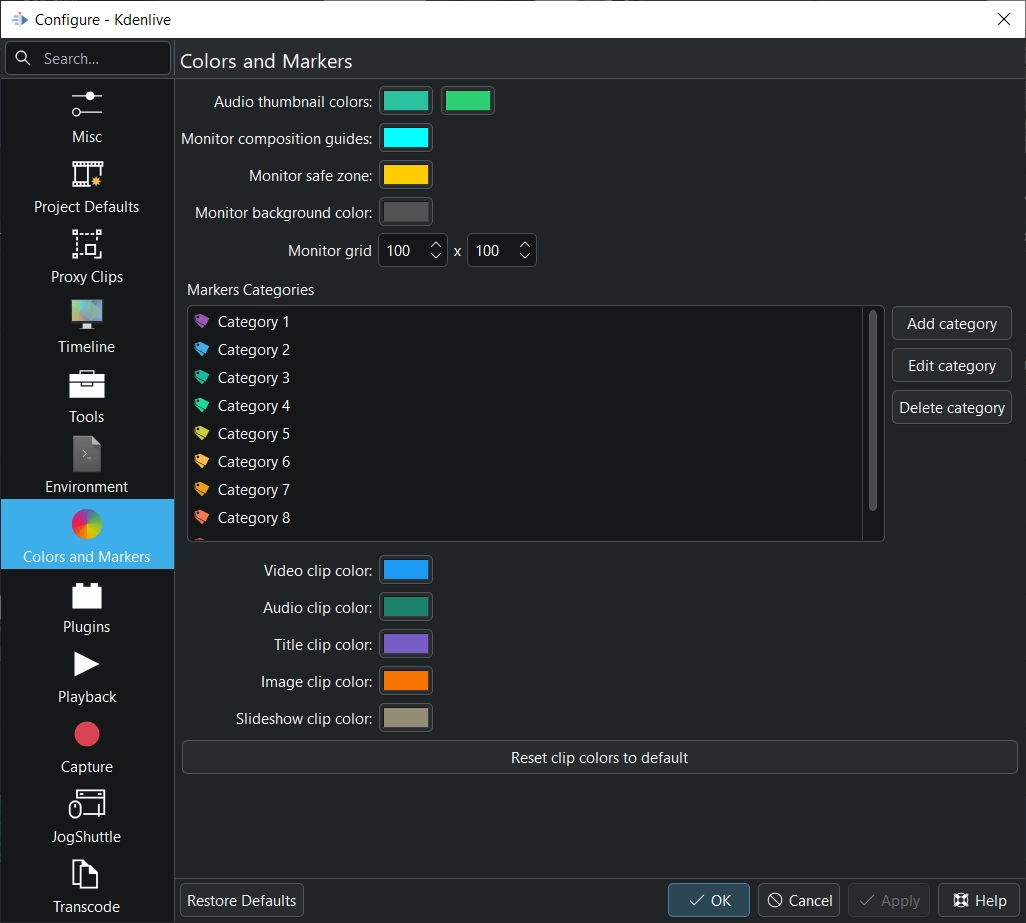
The Colors and Markers section
Audio thumbnail colors Click on the color bar to change the color of the audio wave thumbnail. The color bar on the right controls the color of the second channel (see the section Timeline Separate audio channels).
Monitor overlay color Click on the color bar to change the color of the monitor overlay lines. See the chapter about the Skärmvisningens verktygsrad.
Monitor background color Click on the color bar to change the color of the monitor background.
Markers Categories This lists all the defined categories for Timeline Markers and Markers. From here you can add, edit, and delete categories.
Click on Add category to add a new category. Select a color and enter a name.
Select a category and click on Edit category or simply double-click an existing one to change the color and/or the name.
Click Delete category to delete the selected category.
Varning
The selected category will be deleted without any further confirmation and will be effective immediately without the need to click on Apply. Even clicking Cancel or Restore Defaults will not bring it back!
The following options are used to configure the colors for different clip types in the timeline. When you choose No Thumbnails in the track header or in the Sequence Menu you see below selected colors (see the section Högerklicksmenyn i spår).
Video clip color Click on the color bar to change the color of video clips in the timeline.
Audio clip color Click on the color bar to change the color of audio clips in the timeline.
Title clip color Click on the color bar to change the color of title clips in the timeline.
Image clip color Click on the color bar to change the color of image clips in the timeline.
Slideshow clip color Click on the color bar to change the color of slideshow clips in the timeline.
Reset clip colors to default Click on this button to reset all colors to their default values.