Menú de marcadors
Les funcions d'aquest menú afecten els marcadors que estan seleccionats a la línia de temps o a la safata del projecte. Les funcions del menú estan disponibles depenent de si un clip està seleccionat a la safata del projecte o a la línia de temps.
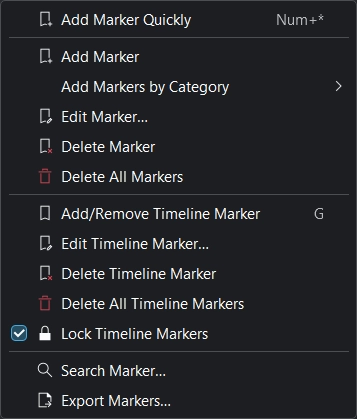
Menú de marcadors
Nota
La funció afegeix un marcador es comporta de manera diferent depenent de si un clip està seleccionat a la safata del projecte o a la línia de temps i a on és actualment el capçal de reproducció actualment i si el focus està a la línia de temps o al monitor de clips.
Afegeix un marcador ràpidament
Afegeix un marcador nou al punt de temps actual. Drecera Num+* (al teclat numèric: *)
Afegeix un marcador
Afegeix un marcador al clip en el punt de temps actual. Els marcadors són propietats dels clips a la safata del projecte. Així que aquesta acció posa un marcador en el clip a la safata del projecte.
Nota
Per tal que l'addició de marcadors funcioni, s'ha de seleccionar un clip a la línia de temps. Podeu crear múltiples marcadors al giny Marcadors per al clip seleccionat a la safata del projecte independentment de la línia de temps.
Afegeix marcadors per categoria
Obre un desplegable per a afegir un marcador per categoria:
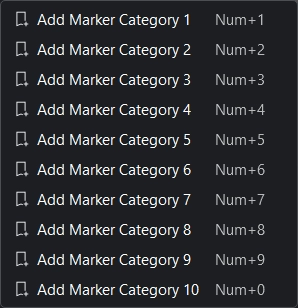
Menú d'afegir marcadors per categoria
Edita un marcador
Perquè això funcioni, el capçal de reproducció ha d'estar just a sobre d'un marcador. Si no és així, obtindreu un error a la part inferior esquerra «No s'ha trobat cap marcador al temps del cursor». Utilitzeu les tecles Fletxa esquerra i Fletxa dreta per a moure el capçal de reproducció un fotograma alhora, o utilitzeu-lo amb Alt per a saltar al punt d'edició següent o anterior (per exemple, als retalls, vores del clip, marcadors i marcadors de la línia de temps).
Com que els marcadors són propietats dels clips a la safata del projecte, aquesta acció canvia el marcador del clip a la safata del projecte i de qualsevol altra instància d'aquest clip a la línia de temps.
Suprimeix el marcador
Perquè això funcioni, el capçal de reproducció ha d'estar just a sobre d'un marcador. Si no és així, obtindreu un error a la part inferior esquerra «No s'ha trobat cap marcador al temps del cursor». Utilitzeu les tecles Fletxa esquerra i Fletxa dreta per a moure el capçal de reproducció un fotograma alhora, o utilitzeu-lo amb Alt per a saltar al punt d'edició següent o anterior (per exemple, als retalls, vores del clip, marcadors i marcadors de la línia de temps).
Com que els marcadors són propietats dels clips a la safata del projecte, aquesta acció elimina el marcador del clip a la safata del projecte i de qualsevol altra instància d'aquest clip a la línia de temps.
Suprimeix tots els marcadors
Suprimeix tots els marcadors del clip actual.
Com que els marcadors són propietats dels clips a la safata del projecte, aquesta acció elimina el marcador del clip a la safata del projecte i de qualsevol altra instància d'aquest clip a la línia de temps.
Això suprimirà tots els marcadors de la línia de temps sense més avís. Utilitzeu Desfés o o Ctrl+Z per a desfer aquesta acció.
Afegeix/Elimina el marcador de la línia de temps
Això afegirà o eliminarà un marcador de la línia de temps (guia) a la línia de temps a la posició actual del capçal de reproducció. Drecera predeterminada: G
Edita el marcador de la línia de temps
Això obrirà una finestra de diàleg per al marcador actual de la línia de temps (guia), on podreu canviar la posició a la línia de temps, el nom i la categoria.
Suprimeix el marcador de la línia de temps
Això suprimirà el marcador de la línia de temps (guia) a la posició actual del capçal de reproducció.
Suprimeix tots els marcadors de la línia de temps
Això suprimirà tots els marcadors de la línia de temps (guia).
Marcadors de la línia de temps bloquejats
Això bloquejarà els marcadors de la línia de temps (guies) a la línia de temps perquè les accions específiques no moguin els marcadors de la línia de temps.
Cerca un marcador
Això portarà el focus al camp Cerca del giny de marcadors.
Exporta marcadors
Això obrirà una finestra de diàleg en la qual podreu especificar les opcions d'exportació dels marcadors. Utilitzeu aquesta funció per a crear capítols de les pujades a YouTube.