Angoli
Descrizione
Questo effetto/filtro permette un’accurata distorsione della prospettiva della geometria della sorgente in ingresso. Invece di usare un regolatore o di inserire dei valori, per modificare la geometri puoi usare le maniglie agli angoli. La modalità di modifica deve però essere abilitata.
Parametri
Parametro |
Valore |
Descrizione |
|---|---|---|
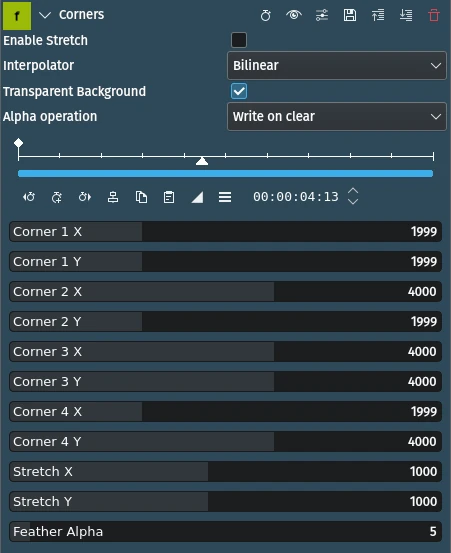
Abilita l’allungamento |
Interruttore |
Deve essere attivo affinché:guilabel:Allunga X / Y abbia effetto. |
Interpolatore |
Selezione |
Seleziona il metodo di interpolazione |
Sfondo trasparente |
Interruttore |
Seleziona come trattare le sfondo trasparente quando viene esposto. Deve essere attivo (predefinito) affinché Sfumatura alfa funzioni. |
Operazione su alfa |
Selezione |
|
Angolo 1-4 X / Y |
Intero |
Imposta le coordinate degli angoli: l’angolo 1 è in alto a destra, il 4 in basso a sinistra. I valori vanno da 0 a 6000. |
Allunga X / Y |
Intero |
Allunga la clip sorgente lungo gli assi X o Y, «spostando» a sinistra/a destra, oppure in alto/in basso il centro virtuale del fotogramma. |
Sfumatura alfa |
Intero |
Imposta l’ampiezza della sfumatura tra il fotogramma e lo sfondo esposto. Funziona solo se Sfondo trasparente è spuntato. |
Sono disponibili le seguenti voci di selezione:
Interpolatore
Nearest neighbor (più vicino) |
|
Bilineare |
predefinito |
Bicubic smooth/sharp |
|
Spline 4x4/6x6 |
|
Lanczos |
Operazione su alfa
Write on clear |
predefinito |
Massimo |
|
Minimo |
|
Aggiungi |
|
Sottrai |
Note
Corners can be moved towards the inside and the outside of the frame. Hence the default values of 1999 and 4000. Imagine the frame of the clip being a frame sitting on a bigger canvas (see yellow hatch pattern below). The top left corner of the canvas has the coordinates X=0 and Y=0, the bottom right X=6000 and Y=6000. When moving the corners you are stretching the image of the clip across the canvas distorting the clip accordingly.
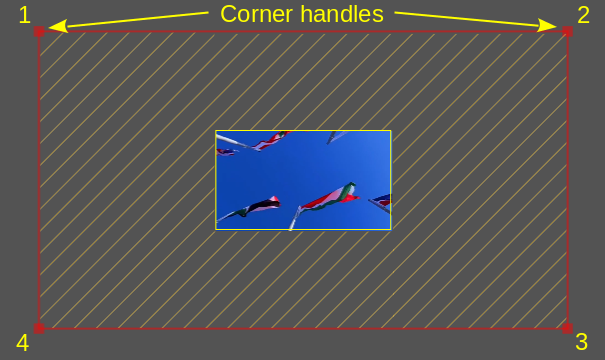
Corners effect schematic
- 1 - 4:
LO schema di numerazione degli angoli.
- Sfondo grigio:
Lo sfondo del Controllo del progetto
- Yellow hatch pattern:
The virtual canvas
- Rettangolo rosso:
The maximum extend of the virtual canvas, and currently the extend to which the clip has been stretched (compare the small rectangle in the middle which is the clip in the Project Monitor @ 1920x1080 resolution)
Nota
The Project Monitor has been zoomed out very much to show this schematic.