Skärmmeny
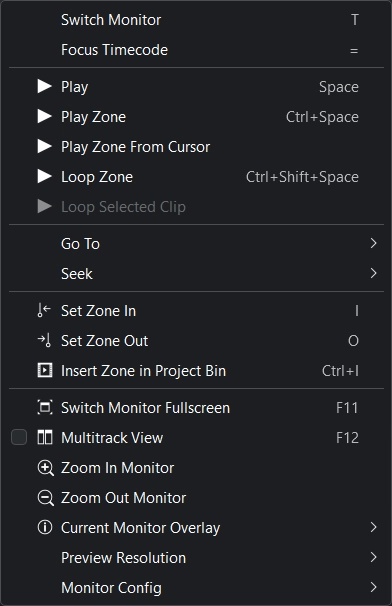
Skärmmenyn i Kdenlive
Skärmmenyn innehåller alternativ för att visa och navigera genom klippen i projektet i syfte att göra ändringar och se effekterna av ändringarna. Beroende på vilket bildskärmsfönster man har valt då, kommer kontrollerna att påverka antingen det valda klippet i projektkorgen (Klippskärm) eller uppspelningspositionen i tidslinjen (Projektskärm).
Med undantag för alternativen och är det mycket mer praktiskt att utföra åtgärderna på menyn med hjälp av de tillhörande kortkommandon eller knapparna längst ned i skärmfönstren.
Byt skärm: Byter mellan klippskärm och projektskärm. När projektskärm är i fokus är även tidslinjen i fokus. Snabbtangent T
Fokusera tidskod: Fokusera tidskoden på den aktiva skärmen så att tidskoden kan ändras till den plats man vill hoppa till. Snabbtangent =
Spela: Börja spela upp skärmen i fokus med genvägen mellanslag.
Spela zon: Spelar upp från in-punkten till ut-punkten i en zon. Snabbtangent Ctrl + mellanslag
Spela zon från markör: Spelar upp från uppspelningspositionen till ut-punkten i en zon.
Upprepa zon: Spelar upp från in-punkten till ut-punkten för en zon och upprepar. Snabbtangent Ctrl + Skift + mellanslag
Upprepa markerat klipp: Fungerar bara i tidslinjen. Spelar upp från det första till det sista markerade klippet i tidslinjen och upprepar.
Gå till
Menyalternativet visar en ruta med åtgärder för att gå till specifika positioner i tidslinjen.
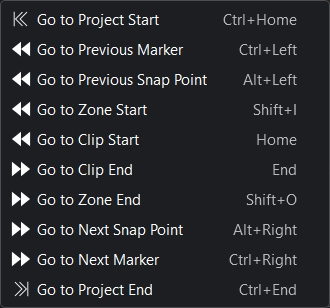
Menyn Gå till
Sök
Menyalternativet öppnar en ruta med följande sökfunktioner:
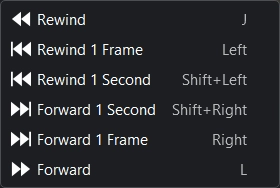
Menyn Sök
Ange zon In: Anger positionen där en zon börjar. Genväg I
Ange zon ut: Anger positionen där en zon slutar. Genväg O
Infoga zon i projektkorg: När en zon har skapats går det att lägga till zonen i projektlådan som ett delklipp till originalklippet med det här kommandot. Det är användbart när man har ett långt klipp och bara vill använda vissa delar av det. Genväg Ctrl + I. En annan möjlighet är att använda Markörer med intervall.
Byt skärm till fullskärmsläge: Byt skärmen till fullskärmsläge när F11 trycks ner eller skärmen dubbelklickas. Man kan ställa in bildskärmen via . Muspekaren döljs automatiskt efter två sekunder (om musen inte har flyttats) och visas automatiskt igen när användaren flyttar musen.
Om det finns mer än en bildskärm kan man aktivera och en enkel riktig spegelbild visas i fullskärmsläge (den visar inte den slutliga utmatningen vid flera kameror ännu). Det behåller bildskärmen som den är men visar en duplicerad fullskärmsuppspelning på en annan bildskärm utan sökfält längst ner. Det är användbart för att visa en annan person eller publik samma visning på en sekundär skärm, till exempel en tv, för återkoppling eller för att visa filmmaterial på en större, mer färgriktig skärm.
Visning av flera spår: Visning av flera spår beskrivs i detalj här.
Zooma in bildskärm: Zooma in.
Zooma ut bildskärm: Zooma ut.
Aktuell skärmöverlagring: Visar en kombinationsruta för de olika tillgängliga överlagringarna. Mer information se Klippskärm eller Projektskärm.
Förhandsgranskningsupplösning: Förhandsgranskningsupplösning beskrivs i detalj här.
Bildskärmsinställning: Visar en kombinationsruta för de olika tillgängliga bildskärmsinställningarna. Mer information se Klippskärm eller Projektskärm.