Meni Označevalniki
Funkcije v tem meniju vplivajo na označevalnike, ki so izbrani v časovnici ali v projektni posodi. Funkcije menija so na voljo glede na to, ali je posnetek izbran v projektni posodi ali v časovnici.
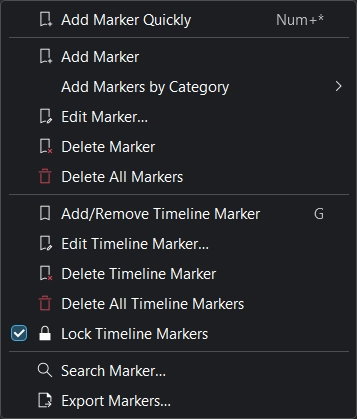
Meni Označevalniki
Opomba
Funkcija Dodaj označevalnik se obnaša različno glede na to, ali je posnetek izbran v projektni posodi ali na časovnici, in kje je trenutno predvajalna glava in, ali je pozornost na časovnici ali na ogledu posnetkov.
Hitro dodaj označevalnik
Doda nov označevalnik na trenutni točki časa. Bližnjica Num+* (na številski tipkovnici: *).
Dodaj oznako
V posnetek doda označevalnik na trenutni časovni točki. Označevalniki so lastnosti posnetkov v projektni posodi. To dejanje torej postavi označevalnik v posnetek v projektni posodi.
Opomba
Da bi označevalnik za dodajanje deloval, mora biti posnetek izbran na časovnici. V gradniku za označevalnike za izbran posnetek v projektni posodi lahko ustvarite več označevalnikov neodvisno od časovnice.
Dodaj označevalnike po kategoriji
Odpre pojavni podmeni za dodajanje oznake po kategorijah:
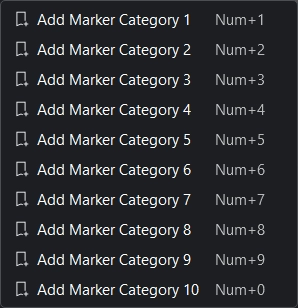
Meni Dodaj označevalnike po kategoriji
Uredi označevalnik
Da to deluje, mora biti predvajalna glava tik nad označevalnikom. Če ni, dobite napako levo spodaj »Na času kazalca ni najdenih označevalnikov«. Uporabite tipki Levo in Desno za premikanje predvajalne glave za eno sličico naenkrat, ali pa jih uporabite z izmenjalko za skok na naslednjo ali prejšnjo točko montaže (npr. reza, odrezanih robov, označevalnike in označevalnike časovnice).
Ker so označevalniki lastnosti posnetkov v projektni posodi, to dejanje spremeni označevalnik posnetka v projektni posodi in s tem tudi vse druge primere tega posnetka na časovnici.
Izbriši označevalnik
Da to deluje, mora biti predvajalna glava tik nad označevalnikom. Če ni, dobite napako levo spodaj »Na času kazalca ni najdenih označevalnikov«. Uporabite tipki Levo in Desno za premikanje predvajalne glave za eno sličico naenkrat, ali pa jih uporabite z izmenjalko za skok na naslednjo ali prejšnjo točko montaže (npr. reza, odrezanih robov, označevalnike in označevalnike časovnice).
Ker so označevalniki lastnosti posnetkov v projektni posodi, to dejanje odstrani označevalnik iz posnetka v projektni posodi in s tem iz vseh drugih primerov tega posnetka na časovnici.
Izbriši vse označevalnike
Izbriše vse označevalnike s trenutnega posnetka.
Ker so označevalniki lastnosti posnetkov v projektni posodi, to dejanje odstrani označevalnik iz posnetka v projektni posodi in s tem iz vseh drugih primerov tega posnetka na časovnici.
To bo izbrisalo vse označevalnike časovnice s časovnice brez dodatnega opozorila. Uporabite Razveljavi ali ali krmilka+Z za razveljavitev tega dejanja.
Dodaj/odstrani označevalnik časovnice
To bo dodalo ali odstranilo označevalnik časovnice (vodilo) v časovnico na trenutnem položaju predvajalne glave. Privzeta bližnjica: G
Uredi označevalnik časovnice
To bo odprlo pogovorno okno za trenutni označevalnik časovnice (vodilo), kjer lahko spremenite položaj v časovnici, ime in kategorijo.
Izbriši označevalnik časovnice
To bo izbrisalo oznnačevalnik časovnice (vodnik) na trenutnem položaju predvajalne glave.
Izbriši označevalnike časovnice
To bo izbrisalo označevalnik časovnice (vodnik).
Označevalniki časovnice zaklenjeni
To bo zaklenilo označevalnike časovnice (vodila) v časovnici, tako da določena dejanja ne bodo premikala označevalnikov časovnice.
Poišči označevalnik
To bo usmerilo pozornost na polje Iskanje v gradniku Označevalnik.
Izvozi označevalnike
To bo odprlo pogovorno okno, v katerem lahko določite možnosti izvoza za označevalnike. Uporabite to funkcijo za ustvarjanje poglavij za nalaganje na YouTube.