Media Menu
The functions in this menu affects media that is selected in the Timeline or in the Project Bin. Menu functions are available depending on whether a clip is selected in the Project Bin or in the Timeline.
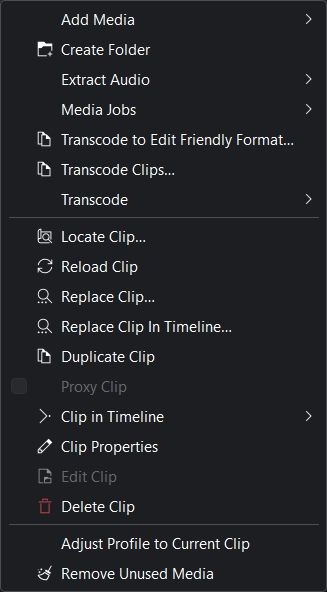
Kdenlive Media Menu
Add Media
Kdenlive Add Media Menu
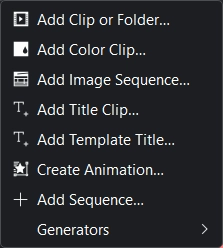
The purpose of this sub-menu is to allow you to add different types of media to the project bin.
Add Clip or Folder
This function allows you to add video, audio and (single) image files from your file system. It is also available from the menu bar of the Project Bin or by right-click or double-click on empty space in the Project Bin.
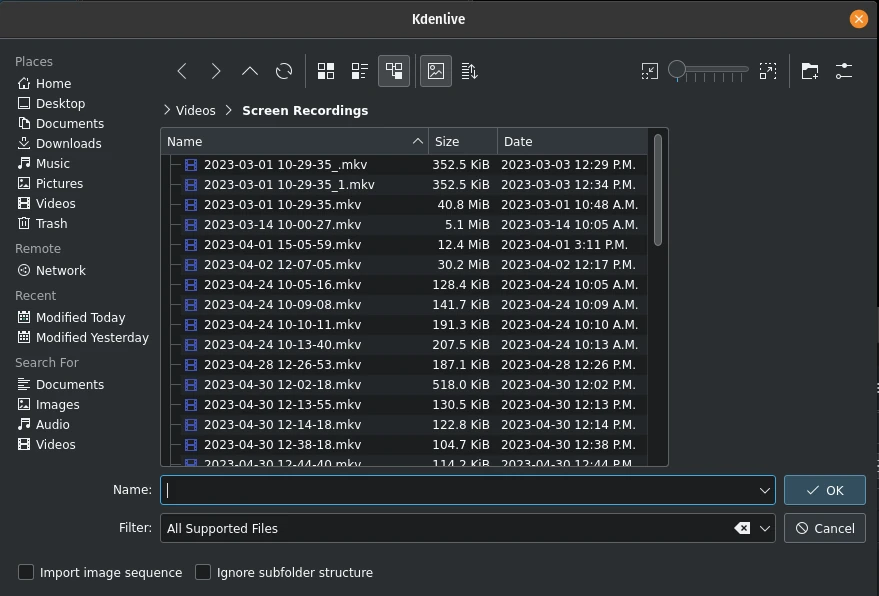
Adding a clip or entire folder
A more detailed explanation of this function is available in the clips section of this documentation.
Add Color Clip
This function allows you to create a clip with a single color.
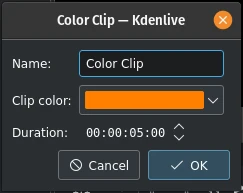
Adding a Color Clip
It is also available from the menu bar of the Project Bin and by right-clicking on empty space in the Project Bin.
For more details refer to the Color Clips section of this documentation.
Add Image Sequence
This function adds a series of still images as one clip to the Project Bin.
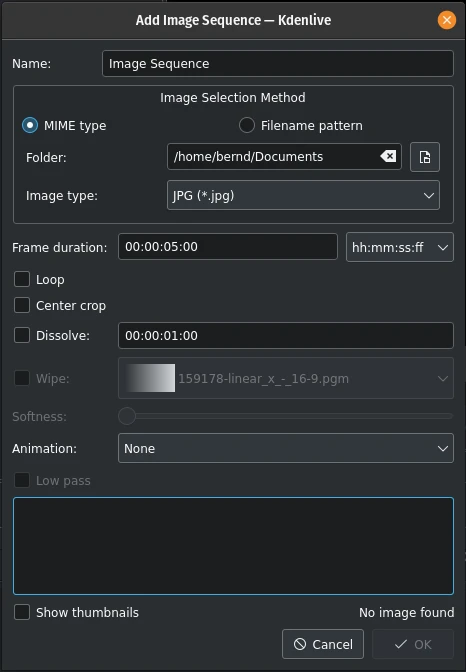
Adding an Image Sequence
It is also available from the menu bar of the Project Bin and by right-click on empty space in the Project Bin.
For more details refer to the Image Sequence section of this documentation.
Add Title Clip
This function adds a Title Clip to the Project Bin. First, it opens the title editor in a separate window where you create the Title Clip. Once saved it shows up in the Project Bin.
A more detailed documentation of the title editor is available in the 標題素材 section of the documentation.
This function is also available from the menu bar of the Project Bin and by right-click on empty space in the Project Bin.
Add Template Title
This function creates a Title Clip based on a Template Title.
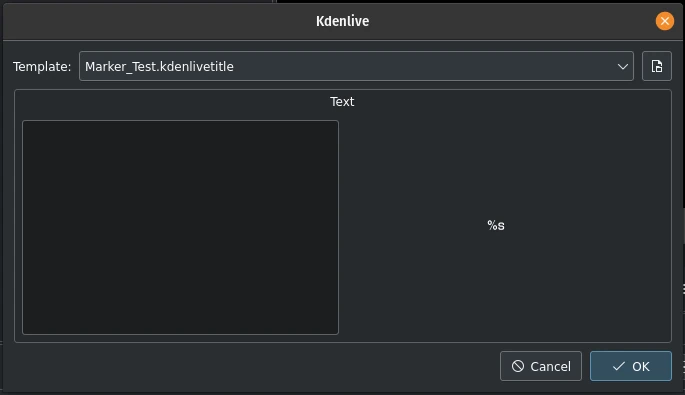
Adding a Template Title
You build the template in the Titler application like a normal Title Clip. The key is the placeholder %s. It will be replaced by the text you enter here.
This function is also available from the menu bar of the Project Bin and by right-click on empty space in the Project Bin.
Please refer to the Template Titles section of this documentation for more details about Titles and Templates.
Create Animation
This function creates an animation clip in the Project Bin and calls Glaxnimate, the application to actually create the animation.
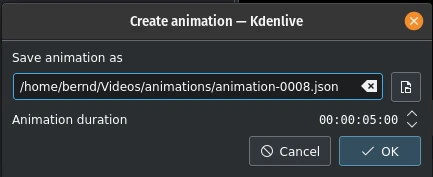
Creating an animation
Glaxnimate has to be installed on your computer and the path to it must be set in .
This function is also available from the menu bar of the Project Bin and by right-click on empty space in the Project Bin.
Add Sequence
This function creates a new Sequence in the Project Bin.
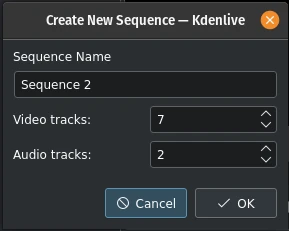
Add a new Sequence
Sequences were introduced with version 23.04 and are needed for nested timelines where you can edit clips separately and independently.
This function is also available from the menu bar of the Project Bin and by right-click on empty space in the Project Bin.
Please refer to the 序列 section of this documentation for more details.
Generators
This function allows to create generated clips in your Project Bin for
Counter
Color Bars (old TV test display)
White Noise
This function is also available from the menu bar of the Project Bin and by right-click on empty space in the Project Bin. See the Clips section in this documentation for more details.
Create Folder
This function creates a new folder in the Project Bin.
The folder is a virtual folder and very useful to keep your assets organized. You can also create separate bins from each folder (see the Multiple Bins section)
This function is also available from the menu bar of the Project Bin and by right-click on empty space in the Project Bin.
More details are available in the Create Folder section of this documentation.
小訣竅
A good way to keep your Project Bin neat and tidy is to have bin folders or separate bins for your footage (main video), B-roll, audio, still images, SFX and VFX, titles and so on.
提取音訊
Only available if the selected clip is a video clip with an audio track. This function extracts the audio from the clip and adds it as a 48kHz wav file to the Project Bin. The process runs as a Clip Job in the Project Bin and may take some time. A small progress bar underneath the clip indicates the progress.
This function is also available via the right-click menu of the clip in the Project Bin.
Media Jobs
Opens a flyout to select different options:
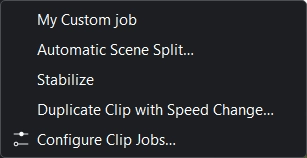
Media Jobs Menu
My Custom Job (this may look different in your environment)
This function is also available via the right-click menu of the clip in the Project Bin.
Select a clip which has running jobs, details of the jobs will appear in the clip monitor as overlay. Click on the X on the clip jobs overlay will cancel the clip job. To enable the clip job overlay see here.
Automatic Scene Split
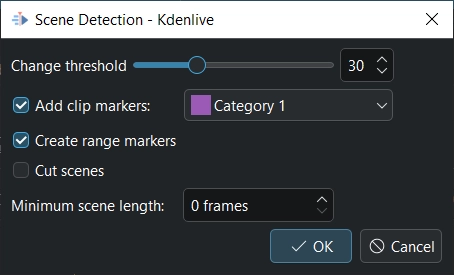
場景偵測
This job detects scene changes in the clip and creates markers and/or range marker and/or cuts the clip into sub-clips. The Change threshold determines the difference in the video stream to be considered a scene change. You may need to experiment with this parameter to get satisfactory results for your specific situation and source material.
If you want Kdenlive to create sub-clips for each scene check the Cut scenes.
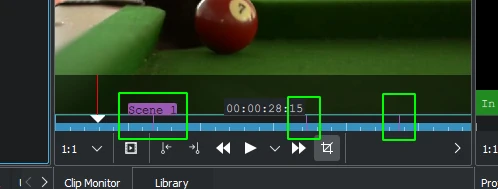
Automatic Scene Detection with markers
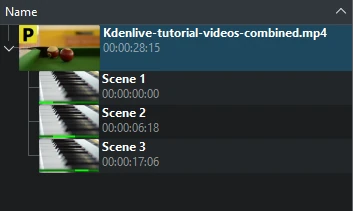
Automatic Scene Detection with cuts
穩定化
This feature applies image stabilization algorithms to the clip which can reduce the shakiness of a bit of footage. It is also available via the right-click menu of the clip in the Project Bin.
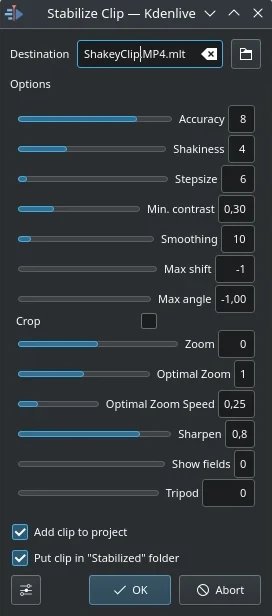
Stabilize Clip dialog in version 21.12
Based on the tooltips from this screen and the docs here this is what all the options mean:
- 精確度
Accuracy of shakiness detection. Should be >= shakiness factor. 1: low (fast processing). 15: high (slow processing). Default: 4. Recommended: 8.
- 搖晃程度
How shaky is the video? And how quick is the camera? 1: little (fast processing). 10: very strong/quick (slow processing). Default = 4. Note: large values may also reduce the accuracy. This is due to the internals of the movement detection. Typically you do not need a value greater than 7.
- 間隔大小
Step size of search process. Region around minimum is scanned with 1 pixel resolution. Default = 6.
- 最低對比度
Below this contrast the field is discarded. Range 0-1. Default = 0.3. You may want to use a smaller value for a really low contrast clip.
- 平滑
Controls the amount of smoothing/stabilization. The larger the value for smoothing the more camera movements are compensated. The resulting clip has a lower change in camera speed. Technically it is the number of frames for lowpass filtering = (smoothing * 2) + 1.
For example, with a with 25 fps clip, a value of 12 for the smoothing factor means we would smooth over one second - 12 frames behind the current frame + the current frame (1) + 12 frames after the current frame. Default = 10.
Demo of the difference (top:3, bottom: 30).
- 最大偏移
Maximum number of pixels to translate image. Default = -1 (no limit)
- 最大角度
Maximum angle to rotate in radians. Default = -1 (no limit).
- 裁切
Unchecked means the border of the transformed frames contains the pixels from previous frames. Checked = black background. Default is unchecked.
- 縮放
Additional zoom during transform. Percentage to zoom > 0 = zoom in, < 0 = zoom out. The zoom specified here is in addition to the optimum zoom calculated by the program when optzoom is checked. Default = 0.
- 最適縮放
Use optimal zoom (calculated from transforms). Causes video to zoom until 90% of transformations are hidden. Default is checked. Hint: You can further zoom in with the zoom option.
- 最適縮放速度
Zoom per frame (used when 「Optimal Zoom」 = 2)
- 銳利化
Sharpens transformed image. Amount of sharpening: 0 = no sharpening. Uses filter unsharp with 5x5 matrix. Default = 0.8.
- 顯示欄位
0 = draw nothing, 1 or 2 = show fields and transforms. Use 1 or 2 to preview what the process is going to do. Check this example. Default = 0. Non-zero values of this parameter are not relevant in the Kdenlive implementation - use zero.
- 三腳架
Virtual tripod mode (=relative=0, smoothing=0)
Here are examples of the effect of running stabilize - transcoded by the original author - Georg Martius.
Duplicate Clip with Speed Change
This function is only available for clips selected in the Project Bin, and can be selected from the right-click menu of a clip. [1]
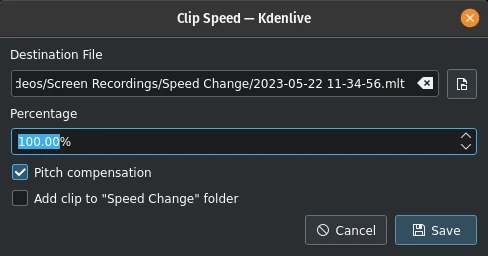
Duplicate Clip with Speed Change
Values above 100% speed the clip up, values below 100% slow it down. The sound in the clip is also reversed.
Select Pitch compensation to avoid the Mickey Mouse effect in speech when speeding up the clip. If you check Add clip to 「Speed Change」 folder a folder named 「Speed Change」 is created in the Project Bin and the clip added to it.
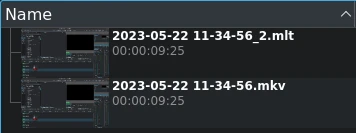
Duplicate Clip with speed change in Project Bin
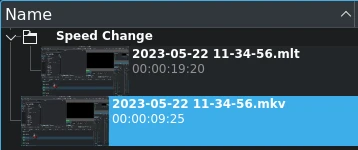
Same as above but with Speed Change folder
When you click on Save a new clip is created in the Project Bin. It has the filename you supplied in the dialog with the .mlt extension.
You can add this clip to the Timeline just like any other, and when you play it the video of the original source clip will be played but at the new speed (or in reverse if a negative % value was entered).
設定素材工作
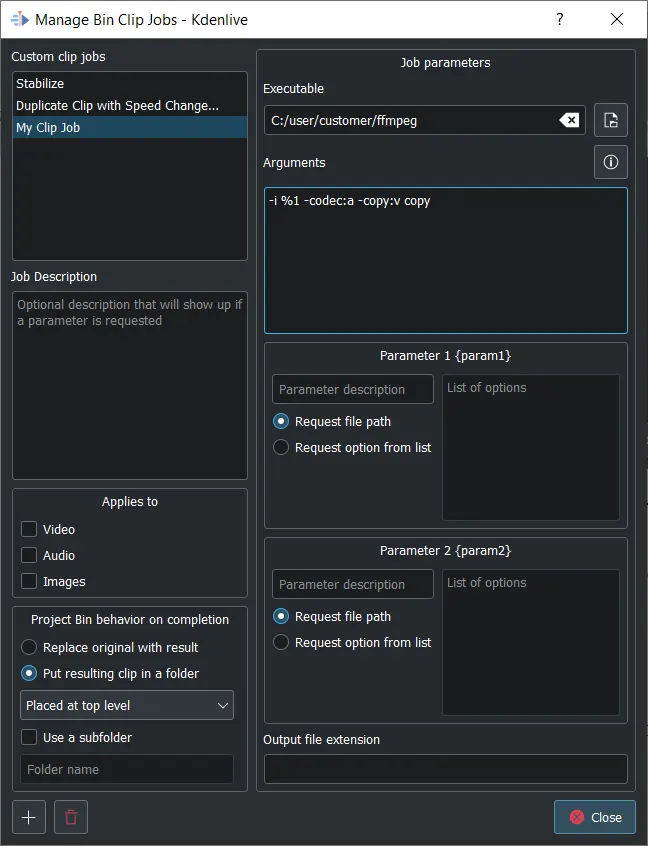
Manage Bin Clip Jobs dialog
This opens the Manage Bin Clip Jobs dialog. Here you can create and manage your own jobs that can then be applied to clips in the Project Bin. Select the executable you want to be called and enter the arguments to be passed to the executable. %1 will be replaced by the path of the source clip. If you do not specify an output file extension the extension of the source file will be used.
Unless you want the original clip to be replaced with the result, select whether the resulting clip is Placed in the original clip folder, Placed at the top level, or Kdenlive shall Use a subfolder to save it. In the latter case you need to enter a folder name.
You can have the source clip path {source} as well as 2 configurable parameters {param1} and {param2}. The output file will replace the {output}. The arguments should be: {source} {param1} {output}
Click on  to create a new custom clip job. In order to delete one, select it first then click on
  .
.
Transcode to Edit Friendly Format
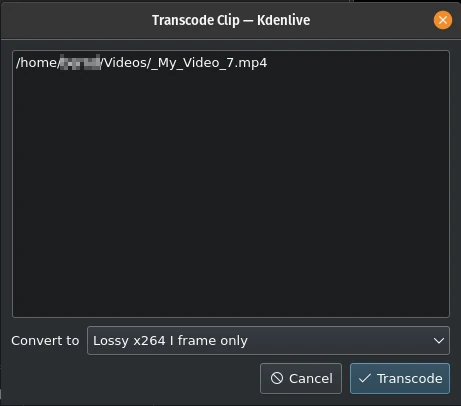
Transcode clip to edit-friendly format
This opens a dialog window where you can select an edit-friendly format in case your source material is not suitable for non-linear video editing. This function is also available via the right-click menu for the clip(s) selected in the Project Bin.
You can select more than one clip in the Project Bin for this function.
There are several formats available, some are lossless (producing huge files), some produce a slight degradation in quality.
Transcode Clips
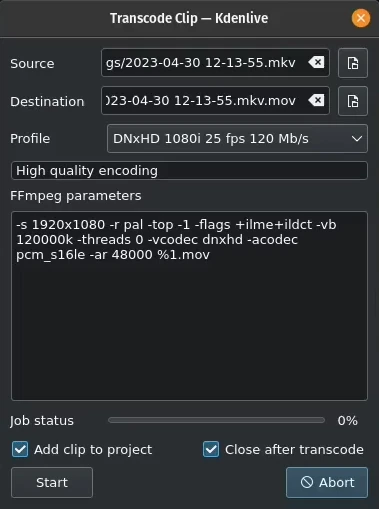
Transcode clips
Use this to convert a video or audio clip from one codec/format to another.
Choose one source file or multiple source files and a profile that represents the desired destination codec/format. Optionally change the destination path and file name and hit Start. Otherwise, hit Abort to close the windows.
Transcoding a clip should be faster than loading the clip into the timeline and re-encoding it into a different format.
Add clip to project controls if after the conversion, the new clip is added to the Project Bin.
Close after encode Uncheck this checkbox if there is the need to convert to another format after the conversion.
轉換編碼
Use this function to transcode your source material into a wide variety of other formats. This function is also available via the right-click menu for the clip(s) selected in the Project Bin.
Choose a transcode profile from the available list to transcode the selected clip into a different video format. The options are controlled by Transcode Settings. The transcoding is done by the ffmpeg program.
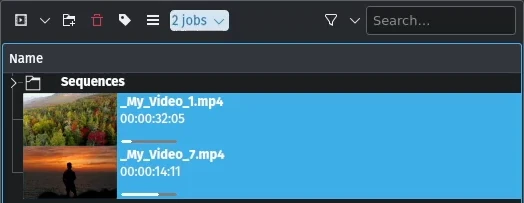
Transcoding job running
While the transcode job is running, the Project Bin will display a progress bar on the thumbnail of the clip(s), and a job list menu item will appear at the top of the Project Bin.
Locate Clip
Locate Clip opens up the system’s file browser at the location of the file system where the selected clip is stored. Useful for tracking down the sources of clips in the Project Bin.
This function is also available via the right-click menu of a clip selected in the Project Bin.
Please note that depending on the type of clip certain menu items are not shown.
重新載入素材
Reload Clip will re-import the clip from the file system into Kdenlive. This is useful when you edit a clip outside of Kdenlive and want Kdenlive to update it in the project.
This function is also available via the right-click menu of a clip selected in the Project Bin.
Replace Clip
Replace Clip will allow you to select a different file but keep all of the uses on the Timeline. This can be useful if you work with placeholder clips (e.g. low resolution or in project templates) and at the end, before rendering, you replace the clip with the final clip.
If you select an audio file only, Kdenlive ask you if you want to change the audio part of the clip only (or vice versa). This is helpful if you have optimized the audio with an external program and you will update the video clip.

Question if you only want to change the audio part of your clip
This function is also available via the right-click menu of a clip selected in the Project Bin.
備註
Make sure the clip replacement is at least of the same length/duration. Otherwise it may lead to unwanted gaps in the Timeline. If effects are used on these clips the replacement clips should have the same dimensions to avoid unwanted behaviour of effects.
Replace Clip In Timeline
With this function you can replace a clip which is in the timeline with another clip. This is helpful when you are working with placeholders or low resolution clips which you like to exchange with the final clip before rendering.
You need to select 2 clips (the replacement clip and the original clip) for this replacement
複製素材
This function will create a copy of the clip in the Project Bin. This can be useful when applying effects to clips and allowing you to have the same source file with two different sets of applied effects, or one with the other without effects.
This function is also available via the right-click menu of a clip selected in the Project Bin.
代理素材
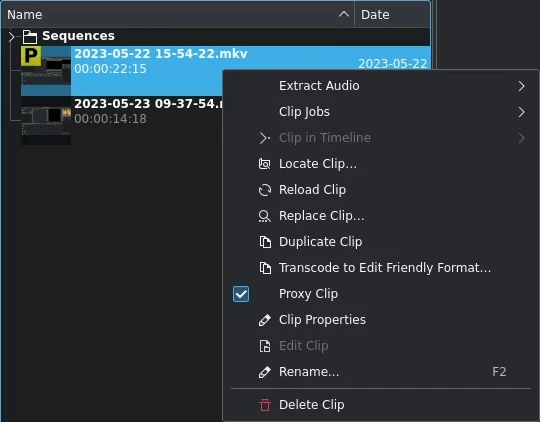
代理素材
If Proxy Clips are enabled in the project settings this function will create a proxy clip for the selected clip(s). A yellow square with the letter P will indicate that the clip in the Project Bin is in fact a proxy clip (expect lower quality for playback in the Clip or Project Monitor). During the final render proxy clips will be replaced by the original source files.
This menu item is a toggle, meaning that if the selected clip is already a proxy clip Kdenlive will revert back to the original source clip.
This function is also available via the right-click menu of a clip selected in the Project Bin.
時間軸中的素材
This function is useful for quickly locating all the places where a clip is used in the Timeline. It is also available via the right-click menu for the clip selected in the Project Bin.
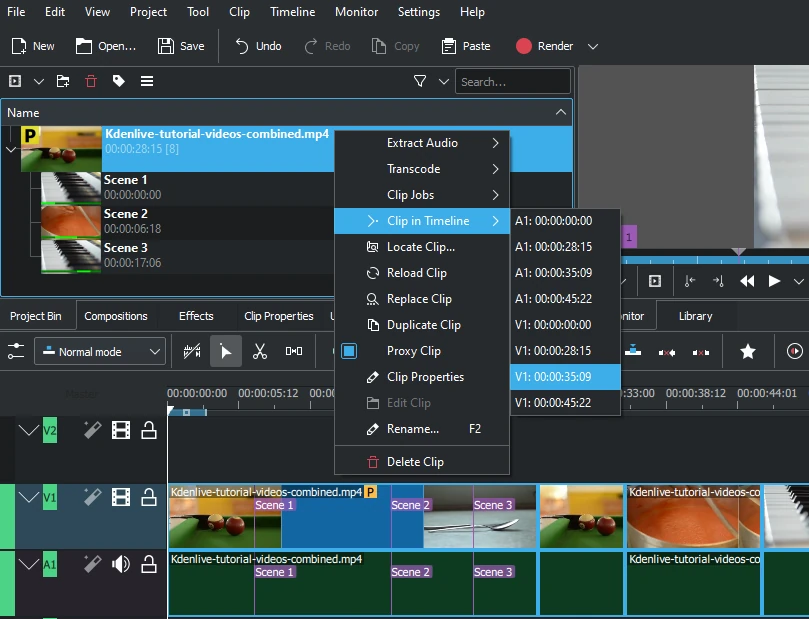
Locating all occurencies of a clip
Selecting the Clip In Timeline menu item brings up a flyout that lists all instances of the selected clip, identified by their track (A for audio, V for video) and position in the Timeline. Clicking on an entry in the list will reposition the playhead to the beginning of the indicated clip.
In the example we have clicked on the third video entry which is located on video track 1 at the 00:35;09 mark and the playhead is now located at the start of that clip.
This option will be greyed out if the clip is not being used in the Timeline.
See also Clip in Project Bin available in the right-click menu on a clip in the Timeline.
素材屬性
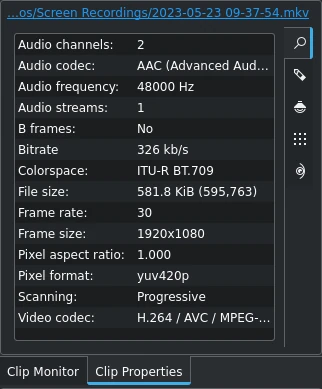
Properties of the clip
This menu item opens the Clip Properties widget and displays the properties of the selected clip in the Project Bin. Depending on the type of clip it includes information about the audio stream, video stream, aspect ratio, dimensions or frame size, frame rate, etc.
This function is also available via the right-click menu of a clip selected in the Project Bin.
For more details see the chapter Clip Properties.
編輯素材
This function is available for the following clip types:
音效
image
animation
video
It opens the clip in an external software specified in Default Apps ready for editing.
This function is also available via the right-click menu of a clip selected in the Project Bin.
If the path is not set a pop-up window appears to define the path to the external software on your computer:
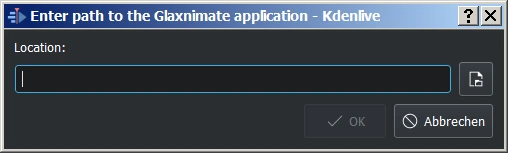
Missing path for Glaxnimate
Once the path is set, the application starts and opens the clip you had selected. The entered path gets added automatically to the default apps in .
More details for installing the needed external software and how to set the path refer to the Default Apps chapter.
提示
The option is greyed out for video clips because Kdenlive is the video editor - only audio, image and animation clips are edited by external software.
刪除素材
This function removes the clip from the Project Bin. It does not delete it from the file system. If the clip is being used in the Timeline a warning message will appear, and if you click on Continue any occurrence of that clip in the Timeline will be deleted.
This function is also available via the right-click menu of a clip selected in the Project Bin.
Adjust Profile to Current Clip
This function offers up a suggested Project Profile that would be most suitable for the currently selected clip in the Project Bin.

Adjusting the project profile to the clip properties
Remove Unused Media
This function can be used to remove any unused clips from the Project Bin.
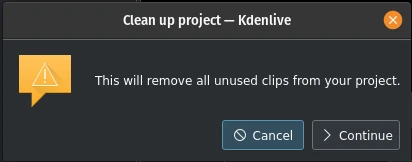
Clean up the project
You can undo this action with , through the 復原紀錄 or with the default keyboard shortcut Ctrl+Z.
備註
This is different from the Project Settings dialog button Delete Files in the Project Files tab which deletes files not used by the project from the hard drive.