Add Clip or Folder
Clips in the context of the Project Bin are all external assets that are imported into Kdenlive. That includes videos, audio files, images, and .json animations, as well as Krita image archives.
For other asset types see title clips and template titles, color clips, animation, and image sequence.
In the project bin toolbar click the  Add Clip or Folder button, or double click an empty space in the project bin. This brings up the Add Clip Dialog where you can choose video, audio, animation, or still image files (individually or as an image sequence) to add to your project.
提示
Of course, you can also drag and drop files into the project bin from your OS file manager of choice.
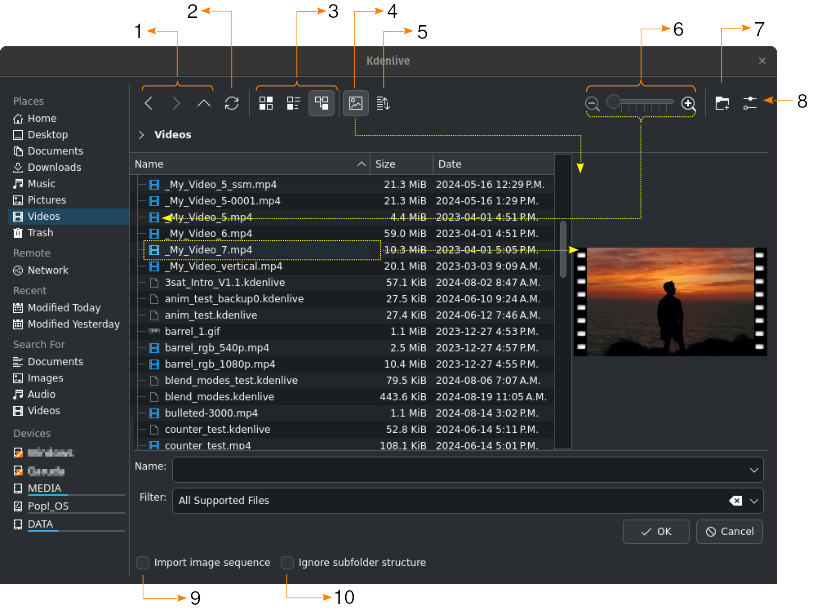
Add Clip dialog window
1 |
|
|
|
|
|
|
|
2 |
|
3 |
|
|
|
|
|
4 |
|
5 |
|
6 |
Use the slider or the Zoom In and Zoom Out buttons to increase or decrease the icon size |
7 |
|
8 |
|
9 |
Import image sequence enables the import of a series of images that can be used to make a stop motion animation (see also Image Sequence) |
10 |
Ignore subfolder structure enables importing video footage or audio recording folders while automatically ignoring any sub-folder structures created by some devices, such as the Sony XDCam, Panasonic P2, Canon camcorders, or Zoom audio recorders. |


Add clips directly to timeline
Alternatively, you can right-click on an empty space in the timeline and choose . This will open a sub-menu to allow you to quickly add clips. The clip will be placed exactly where the mouse cursor was.
This function has a smart length detection for placing clips into a gap. If the default length of Color Clip, Title Clip, Template Title are longer then the gap, it will be shortened accordingly to fit into the gap.
All other clip types are only inserted into a gap if the gap is big enough (no message shows up if the clip is too long).
Adding a folder: The folder is added in the project bin but only the first A/V clip of this folder is added to the timeline.