Edit Menu
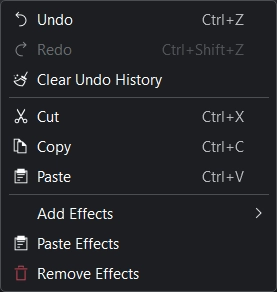
Kdenlive Edit Menu
Undo
is used to reverse the last change you made or operation you performed in Kdenlive. If you have made multiple changes to your project, Undo can be used repeatedly to rollback each of the changes in the reverse order they were performed. Undo can also be executed from the icon on the Extra Toolbar () or by using the default keyboard shortcut Ctrl+Z.
To view a navigable list of all the changes which can be undone, see Undo History.
Redo
reverses the previous Undo operation. The default keyboard shortcut is Ctrl+Shift+Z.
Clear Undo History
clears the undo history and will free the undo operation in memory for the current project. It will discard all undo history, so you cannot undo anymore.
For more information see Undo History.
Cut
Cuts a clip selected in the timeline to the clipboard. The default keyboard shortcut is Ctrl+X. It also copies the effects attached to the clip to the clipboard. Use Paste to paste the clip into a different spot on the timeline. Use Paste Effects to paste just the effects from the copied clip onto a different clip or group of clips.
Copy
Copies a clip selected in the timeline to the clipboard. The default keyboard shortcut is Ctrl+C. It also copies the effects attached to the clip to the clipboard. Use Paste to paste the clip into a different spot on the timeline. Use Paste Effects to paste just the effects from the copied clip onto a different clip or group of clips.
Paste
Pastes an existing clip in the clipboard into a different spot on the timeline (where the playhead is, to be exact). The default keyboard shortcut is Ctrl+V.
Add Effects
This menu item will open a flyout with all the effect categories from which you can then select an effect to be added to the track effect stack. See also the Effects and Filters section of the documentation.
Paste Effects
You need to have selected a clip and copied it first. Then select another clip or a group of clips. Paste Effects then pastes just the effects from the previously selected clip to the newly selected clip or group of clips.
Remove Effects
Deletes all effects from the selected clip.